> For the complete documentation index, see [llms.txt](https://dyorhq.gitbook.io/docs/llms.txt). Markdown versions of documentation pages are available by appending `.md` to page URLs; this page is available as [Markdown](https://dyorhq.gitbook.io/docs/getting-started/quickstart.md).
# Quickstart (Onboarding)
This is the fastest path from zero to your first trade on DyorHQ. It takes about five minutes once you have the app.
{% hint style="info" %}
**Early access.** DyorHQ is not on the App Store yet. Access is by email waitlist. Join at [dyorhq.fun](https://dyorhq.fun) and we'll email you when your invite is ready.
{% endhint %}
## Step 1: Join the waitlist and install the app
1. Go to [dyorhq.fun](https://dyorhq.fun) and enter your email in the form at the bottom of the page.
2. Watch your inbox. Your invite email tells you how to install the app on your iPhone.
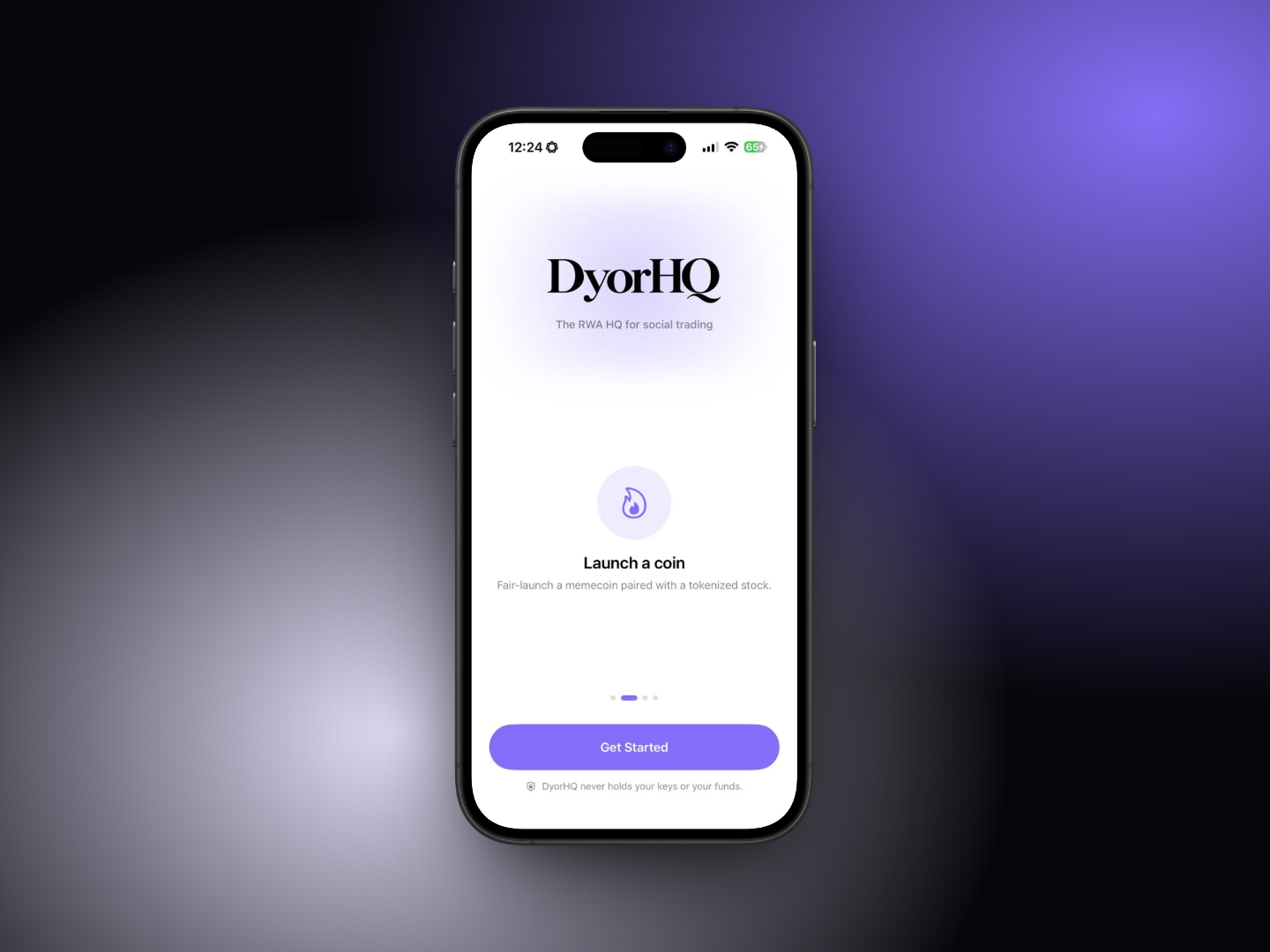
3. Open DyorHQ. You'll see the welcome screen with a short tour of the products and a **Get Started** button.
**Requirements:** iPhone running iOS 18 or later.
## Step 2: Create your account
Tap **Get Started**. The "Get started" screen offers the **Email & Password** card at the top; **Continue with Apple**, **Continue with Google**, **Create account with a passkey** and **I already have a passkey** under "or continue with"; and **Import a wallet** and **Watch an address** under "more ways in":
* **Email & Password** (recommended for new users). Tap the big card, choose **Sign Up**, enter your email and a strong password, and confirm the 6-digit code we email you. Your wallet is created on your iPhone the moment you verify.
* **Apple or Google.** A wallet secured by your Apple or Google sign-in. The same sign-in opens it on any device.
* **Passkey.** Face ID, no password. Your wallet is derived from your passkey each time you unlock it.
* **Import a wallet.** Bring an existing wallet with its 12 or 24 word recovery phrase or a private key.
* **Watch an address.** Follow any Monad wallet, read-only. Nothing can be signed.
{% hint style="danger" %}
With Email & Password, **your password is your wallet**. DyorHQ can't reset it or send a recovery email. If you lose it, you lose access to your funds. Write it down or save it in your password manager before you go further.
{% endhint %}
Full details, password rules and the differences between each method are in [Create Your Account](/docs/getting-started/create-your-account.md).
## Step 3: Get your address and fund it
You're now on the **Home** tab. Tap **Deposit** in the quick actions row to open your **Receive** sheet. It shows a QR code and your full Monad address, with **Copy** and **Share** buttons.
Send funds to that address on **Monad mainnet**. You'll want:
* **MON** for gas. Every transaction on Monad is paid in MON.
* **USDC** to swap, to collect Moments, or as a launchpad pair asset.
* **AUSD** if you plan to trade perps (Perpl's collateral).
See [Fund Your Wallet](/docs/getting-started/fund-your-wallet.md) for options.
## Step 4: Make your first swap
1. Tap the **Trade** tab. **Swap** is selected by default.
2. Under **You Pay**, choose MON and enter an amount (or tap 25% / 50% / 75% / 100%).
3. Under **You Receive**, choose USDC.
4. Wait a second. The **Quotes** list fills with prices from Kuru Flow, Uniswap and Monday Trade. The best one is tagged **Best** and preselected.
5. Tap **Review Swap**, check the sheet (You pay, You receive, Minimum received, Venue, Route, Slippage), then tap **Swap**.
6. Watch each step turn green. Tap **View** on any step to open it on Monadscan.
You'll get a "Swap complete" notification (if notifications are on) and the swap shows up in **Swap History** and in your **Recent Activity**.
## Step 5: Explore the rest
* **Perps:** switch the Trade tab to **Perps**, deposit at least 10 AUSD to open your Perpl account, and place your first order. See [Perps Overview](/docs/perpetuals/overview.md).
* **Launch:** browse live coins, or tap **New Launch** to launch your own. See [Launch a Coin](/docs/launchpad/launch-a-coin.md).
* **Moments:** collect a photo or video edition for USDC, or publish your own. See [Moments Overview](/docs/moments/overview.md).
* **Menu (☰ on Home):** Portfolio, News, Get Help and your Profile.
{% hint style="success" %}
**Tip:** Keep **Require Face ID** on (Profile → Security). It's on by default for a new install on an iPhone with a passcode, and it asks for Face ID before every transaction is signed. If you updated from an earlier version, check that it's on.
{% endhint %}
---
# Agent Instructions
This documentation is published with GitBook. GitBook is the documentation platform designed so that both humans and AI agents can read, navigate, and reason over technical content effectively. Learn more at gitbook.com.
## Querying This Documentation
If you need additional information that is not directly available in this page, you can query the documentation by asking a question.
Perform an HTTP GET request on the following URL with the `ask` and `goal` query parameters:
```
GET https://dyorhq.gitbook.io/docs/getting-started/quickstart.md?ask=&goal=
```
`ask` is the immediate question: it should be specific, self-contained, and written in natural language.
`goal` is what the user is ultimately trying to achieve, the reason they need the answer. Sharing it helps GitBook give you a better, more relevant answer. A goal is most helpful when it describes the outcome the user wants rather than restating the question. For example, with `ask=how do I create an API token`, a goal like `automate deployments from our CI pipeline` lets GitBook tailor the answer to that use case.
The response will contain a direct answer to the question and relevant excerpts and sources from the documentation.
Use this mechanism when the answer is not explicitly present in the current page, you need clarification or additional context, or you want to retrieve related documentation sections.